iPhone app + Mac companion
Your Mac, from your iPhone.
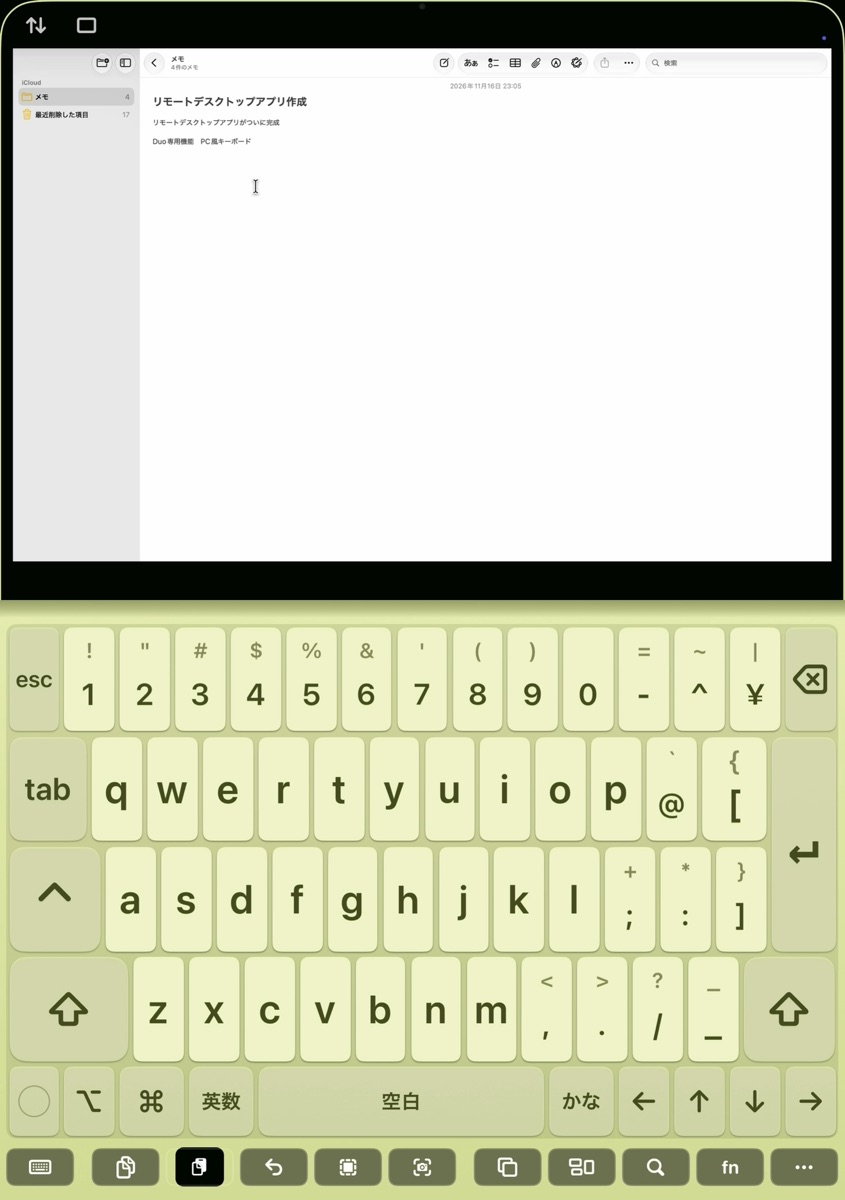
See your Mac's screen on your iPhone and tap it directly. A Mac-style keyboard for your shortcuts. Text and images you copy on your iPhone can be pasted on your Mac.
Pocketop Host 1.3 · about 0.7 MB · macOS 14 or later (Apple silicon and Intel) · Free · Signed with Developer ID and notarized by Apple
Getting started
- Download Pocketop Host with the button above and drag the app into the Applications folder.
- Open Pocketop Host. A laptop icon appears in the menu bar. Choose "Allow Screen Recording and Accessibility…" and turn Pocketop Host on in System Settings.
- Install Pocketop on your iPhone.
- Choose "Connect iPhone (QR Code)…" in the Pocketop Host menu and scan the QR code with the iPhone Camera. Tap "Open in Pocketop", then "Connect" to fill in the key and address (if Tailscale is on, the address for use away from home is included).
Without the QR code, choose "Show Connection Key" to see the 20-character key and enter it under Settings > Connection. No Mac nearby? Tap "Try the Demo" in Pocketop.
Connecting from elsewhere
Pocketop has no relay server between your iPhone and Mac. To connect away from home, put both devices on your own VPN (such as Tailscale) and enter the Mac's VPN address under Settings > Mac Address.
Why permissions are needed
- Screen Recording: to send the Mac's screen to your iPhone.
- Accessibility: to pass clicks and key presses from your iPhone to the Mac.
- Local Network: so your iPhone on the same Wi-Fi can find the Mac.
Staying safe
Connections are encrypted with the connection key; devices without it can't connect. On public Wi-Fi, turn off "Accept Connections from the Same Wi-Fi" in the menu to accept VPN connections only. Turn on "Open at Login" to start waiting for connections whenever your Mac starts.
FAQ
- Does it cost anything?
- Pocketop Host and the basic features of Pocketop are free. Screen-only control (typing, the Mac key row, copy and paste) is always free. Pocketop Pro, a one-time in-app purchase, unlocks the Laptop layout (free to try for 7 days from first use), multiple Macs and your own shortcuts, removes the ad in Settings and unlocks every body color.
- Is my screen or typing sent anywhere?
- No. Screen video, input and copied items travel only between your iPhone and your own Mac. They never pass through our servers.
- It won't connect.
- Tap "Find out why it won't connect" in Pocketop (on the waiting screen and under Settings > Connection). It checks the iPhone's connection, Local Network permission, the Mac on your Wi-Fi, Tailscale and Pocketop Host in order, and tells you what to do next.
- My Mac goes to sleep.
- Turn on "Keep Mac Awake While Waiting" in the menu (it is on by default).
Download
SHA-256: 6f70893921aba5c3c119a8b24164f733c8a900ee2404466142cb6e39ce5230ce
Support
For questions or problems, please contact us by email.